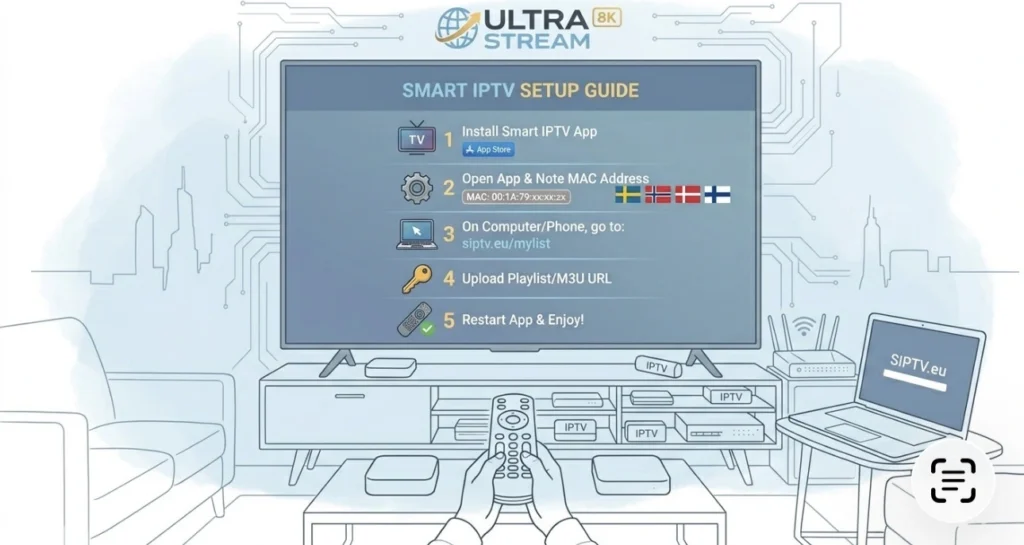
Smart IPTV Setup Guide —
Every Device, Step by Step
This Smart IPTV setup guide covers everything you need — a complete, no-confusion walkthrough for setting up Smart IPTV on Samsung, LG, Firestick, Android and more — plus what to look for in a service worth using with it.
What Is Smart IPTV?
Smart IPTV is one of the most widely used IPTV player apps, built specifically for Samsung and LG Smart TVs, with additional support for Android, Firestick and other devices through similar players. It loads M3U playlists and EPG (program guide) data, turning any compatible screen into a full live TV and on-demand setup.
It’s important to understand from the start: the app itself does not include any channels. It is purely a player — the channels come from a separate IPTV subscription service that you pair with it. This guide covers both halves of that equation: getting the app working correctly, and choosing a service worth pairing it with.
Quick summary: Install the app on your device, get your playlist link (M3U URL) or login from your IPTV provider, enter it once, and your channels load automatically. The whole process takes under 10 minutes once you have an active subscription.
Before You Start
A few things make the setup process smoother if you have them ready beforehand:
- An active IPTV subscription — you’ll need an M3U playlist URL or Xtream Codes login (server, username, password) from your provider.
- A stable internet connection — wired Ethernet is ideal for 4K streaming; if using Wi-Fi, a strong 5GHz connection is recommended.
- Your device’s MAC address — most Smart IPTV-style apps display this on screen when first opened, and some providers ask for it to register your device.
If you don’t have a subscription yet, message us on WhatsApp for a free 24-hour trial — you’ll receive your playlist details instantly and can follow the rest of this guide right away.
Setup by Device
The exact steps vary slightly depending on your device. Select your device below for the specific instructions.
- Open the app store on your Samsung Smart TV and search for an IPTV player app (availability varies by region and TV model).
- Install and open the app — you’ll see a MAC address displayed on screen.
- On your phone or computer, go to your provider’s playlist portal and enter that MAC address along with your M3U URL or Xtream Codes login.
- Restart the app on your TV. Your channel list and EPG should now load automatically.
- Search the LG Content Store for an IPTV player app. If it’s not available in your region, manual installation via USB or developer mode may be required.
- Once installed, open the app to find your device’s MAC address on screen.
- Register that MAC address with your playlist URL or login through your provider’s portal.
- Restart the app — your channels and guide data will populate within moments.
- From the Firestick home screen, install the Downloader app via the Amazon App Store if not already installed.
- Use Downloader to install your chosen IPTV player APK (TiviMate, IPTV Smarters, or similar players work well on Firestick).
- Open the app and enter your M3U playlist URL or Xtream Codes login directly — no MAC registration is typically required for these players.
- Your channel list loads immediately and you’re ready to stream.
- Open the Google Play Store on your Android device or Android TV box and search for an IPTV player app.
- Install and open it — most Android IPTV apps let you add your playlist URL directly within the app’s settings.
- Enter your M3U URL or Xtream Codes details from your provider.
- Save, and your channels will load — typically within seconds on a good connection.
Don’t Want to Do This Alone?
Get a free 24h trial, plus hands-on setup support for your exact device, via WhatsApp.
💬 Get Free Trial + Setup HelpAdding Your Playlist
Once the app is installed, the playlist is what actually brings your channels to life. There are two common formats providers use:
- M3U URL: A single web link containing your full channel list. You typically paste this directly into the app, or register it through the provider’s portal alongside your device’s MAC address.
- Xtream Codes login: A server address plus username and password combo, entered directly within the app’s login screen.
Your provider will tell you which format they use when you subscribe. With Smart IPTV Sat, you receive your playlist details instantly via WhatsApp after subscribing or starting a free trial, along with guidance on exactly where to enter them for your device.
Smart IPTV Setup Guide — Choosing a Service
The app is only half the equation. Since it doesn’t include any channels, the quality of your experience depends entirely on the IPTV service you pair it with. Here’s what actually matters when comparing providers:
| What to Check | Why It Matters |
|---|---|
| Channel count & variety | More channels means better coverage of sports, news and entertainment |
| True 4K vs upscaled | Many providers claim 4K but deliver compressed or upscaled HD |
| Server stability | Buffering during peak hours ruins the experience entirely |
| Free trial availability | Test before you pay — any serious provider offers this |
| Setup support | Free, hands-on help saves hours of frustration |
Smart IPTV Sat checks every box — 54,000+ channels, verified true 4K quality, anti-freeze infrastructure built for peak-hour reliability, and free setup support included with every plan. View pricing or start with a free 24-hour trial.
Troubleshooting Common Issues
Channels not loading
Usually caused by an expired playlist link or incorrect MAC address registration. Double-check the link is current and correctly entered, and try restarting the app.
Buffering or freezing
This is almost always a server-side issue with your provider, not your internet connection. A 25+ Mbps connection should comfortably handle 4K streaming if the provider’s infrastructure is solid.
EPG (program guide) not showing
Some apps need a separate EPG URL in addition to the main playlist. Check your provider’s setup instructions for the correct EPG link to add.
App not available in your country’s store
Some IPTV apps are geo-restricted on official app stores. Sideloading via Downloader (Firestick/Android) or manual USB installation (Samsung/LG) is the usual workaround.
If issues persist after checking the basics, the fastest fix is contacting your provider directly. A responsive support team can usually pinpoint the exact cause within minutes — whether it’s a playlist needing a refresh, a device-specific quirk, or a temporary server issue.
Final Thoughts
Smart IPTV setup is straightforward once you understand that the app and the content provider are two separate things. The app just plays your channels — the quality of your experience depends entirely on the provider behind it.
Smart IPTV Sat offers 54,000+ channels in genuine 4K, free setup support for every device, and a free 24-hour trial so you can test everything before committing. Message us on WhatsApp to get started.
Service Made Reliable.
54,000+ channels. True 4K. Zero buffering.
Free trial 24h — no credit card needed.